










How to Use an App-Controlled Massager

This content is for informational purposes only and does not constitute medical advice. Consult a healthcare professional for personal guidance.
App-controlled personal massagers are one of the most exciting developments in intimate wellness — and if you've just bought one (or you're considering it), you're about to discover a level of customisation and connection that traditional products simply can't offer. Whether you want to create vibration patterns tailored exactly to your preferences or hand control to a partner who's across the room — or across the country — an app-controlled massager opens up possibilities that feel almost futuristic.
But the technology can feel a little intimidating at first. How does the pairing work? What if Bluetooth keeps disconnecting? Can your partner really control it from another city? This guide walks you through everything from initial setup to advanced features, so you can skip the frustration and get straight to the good part.
Key Takeaways
- Download the MyMuse Sync app and create an account before unboxing your massager
- Bluetooth pairing works best when you're within 3-5 metres with no obstacles
- Custom vibration patterns let you design exactly the experience you want
- Long-distance partner control works over the internet — no distance limit
- Most connection issues are solved by keeping the app updated and Bluetooth toggled fresh
Getting Started: Setup and Pairing
Download the MyMuse Sync App
Before you even switch on your massager, get the app ready. MyMuse Sync is available for both iOS and Android. Search for "MyMuse Sync" in your app store, download it, and create your account. Use an email you're comfortable with — the app is built with privacy in mind, and your data stays secure.
Once your account is created, take a moment to explore the interface. You'll see sections for device pairing, vibration patterns, partner control, and settings. Familiarising yourself with the layout now means less fumbling later when you're in the moment and want to change a setting quickly.
Charge Your Massager Fully
Before first use, charge your massager completely. Most MyMuse app-controlled products use magnetic USB charging. Connect the charger, look for the LED indicator, and wait until it shows a full charge. A full charge typically takes 1.5 to 2 hours and provides extended play time so you won't be interrupted mid-session.
While it's charging, keep the massager turned off. Using a product while charging is not recommended for battery health or safety. Patience now means uninterrupted enjoyment later.
Pair via Bluetooth
Here's the step-by-step pairing process:
First, make sure Bluetooth is enabled on your phone. Open the MyMuse Sync app and navigate to the device pairing section. Turn on your massager — most models require a long press of the power button until the LED flashes, indicating pairing mode.
The app should detect your massager within a few seconds. Tap on the device name when it appears in the app's list of available devices. You'll see a confirmation when pairing is successful, and the LED on the massager will typically change from flashing to steady.
Important: pair through the app, not through your phone's general Bluetooth settings. The app uses a specific Bluetooth protocol, and pairing through the system settings won't give you full control over the product's features.
For the strongest connection, keep your phone within 3 to 5 metres of the massager during initial pairing and general use. Walls, furniture, and other electronic devices can interfere with Bluetooth signals, so proximity matters — especially during setup.
Explore the Built-In Vibration Modes
Once paired, you'll have access to multiple pre-set vibration patterns through the app. These typically include steady vibrations at various intensities, pulsing patterns, escalating waves, and rhythmic sequences. Take time to try each one — not during a session, but on your hand or arm first — so you understand what each pattern feels like.
Use the app's intensity slider to adjust power levels in real time. Most app-controlled massagers offer far more precise intensity control through the app than the physical buttons on the device allow. This is one of the key advantages of app control — you get a full spectrum of intensity rather than just three or four preset levels.
Create Custom Vibration Patterns
This is where app-controlled massagers truly differentiate themselves. The MyMuse Sync app lets you design your own vibration patterns — adjusting the rhythm, intensity, duration, and transitions to create something that's uniquely yours.
Think of it like creating a playlist but for sensations. You might design a pattern that starts with a gentle pulsing warmup, builds gradually to a higher intensity, drops suddenly to a teasing low, and then escalates to a powerful sustained vibration. Once you've created a pattern you love, save it so you can access it instantly in the future.
Don't be afraid to experiment. Create several patterns for different moods — a slow, meditative one for relaxation, an intense escalating one for when you know what you want, and a playful, unpredictable one for when you're feeling adventurous. Having options at your fingertips (literally) means you never have to settle for a pattern that's almost right.
Set Up Partner Control for Long-Distance Intimacy
One of the most compelling features of app-controlled massagers is the ability to share control with a partner, regardless of physical distance. This works over the internet, not just Bluetooth, which means your partner can be in the next room or in another city entirely.
Here's how to set it up: both partners need the MyMuse Sync app installed. The partner who has the massager pairs it to their phone via Bluetooth as described above. Then, through the app's partner control feature, you generate a connection link or code that you share with your partner. They enter this code in their app, and once connected, they gain real-time control over vibration patterns, intensity, and mode selection from their phone.
The controlling partner sees a live interface on their screen and can adjust everything in real time. For couples in long-distance relationships or those with different work schedules, this feature bridges the physical gap in a way that feels genuinely intimate and connected. It turns an individual product into a shared experience.
Use Real-Time Live Control Features
Beyond pre-set patterns, the MyMuse Sync app offers live control modes where your partner can draw patterns on their screen that translate directly into vibration changes. Imagine your partner tracing circles or waves with their finger, and your massager responding in real time — it creates a responsive, dynamic experience that feels personal and intentional.
Some app-controlled massagers also sync with audio or music, creating vibrations that match the rhythm of whatever's playing. This adds another dimension to solo or partnered sessions and is worth exploring once you're comfortable with the basic features.
Troubleshooting Common Connection Issues
Technology is wonderful when it works and frustrating when it doesn't. Here are solutions to the most common issues:
Massager won't appear in the app: Make sure the massager is in pairing mode (LED flashing). Toggle Bluetooth off and on again on your phone. Close the MyMuse Sync app completely and reopen it. Ensure your massager has sufficient charge — low battery can prevent pairing.
Connection drops during use: Move your phone closer to the massager. Close other Bluetooth-connected devices that might be causing interference (wireless earbuds, smartwatches). Ensure the app has permission to run in the background on your phone — some phone settings aggressively close background apps to save battery.
Partner control lag or delay: Both partners should be on a stable Wi-Fi connection rather than mobile data, if possible. Close other bandwidth-heavy apps on both phones. If you're experiencing persistent lag, try reconnecting through the partner control feature — sometimes a fresh connection resolves latency issues.
App crashes or freezes: Update to the latest version of the MyMuse Sync app. Clear the app cache in your phone settings. If the issue persists, uninstall and reinstall the app, then re-pair your device.
Recommended App-Controlled Products
MyMuse Dive
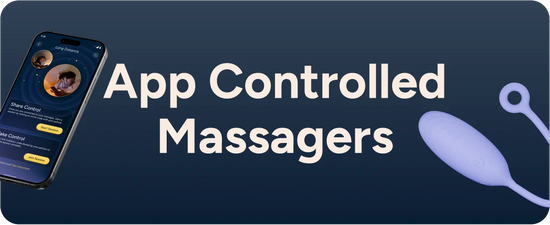
The Dive is MyMuse's flagship app-controlled massager, connecting seamlessly with the MyMuse Sync app. It features multiple built-in vibration modes, support for custom patterns, real-time partner control, and a powerful motor packed into a body-safe silicone design. Whether you're using it solo or sharing control with a partner near or far, the Dive delivers a premium, fully connected experience.
MyMuse Glide Water-Based Lubricant
Every massager session is better with lubricant. This water-based formula is safe with the Dive's silicone body, compatible with condoms, and enhances comfort and sensation. Keep it within arm's reach — the last thing you want during an app-controlled session is to pause for a supply run.
Frequently Asked Questions
Is the MyMuse Sync app secure? Can anyone else access my massager?
The MyMuse Sync app uses encrypted connections for partner control. Only someone with your specific connection code can access your device, and you can revoke access at any time. The app doesn't share your personal data, and your usage patterns remain private. Treat your connection code like a password — only share it with people you trust.
Does the app drain my phone battery?
The app uses Bluetooth Low Energy (BLE), which is designed to have minimal impact on battery life. During a typical session, you'll notice very little additional battery drain. For longer sessions, having your phone charged or near a charger is a good precaution, but the app itself is not a significant battery consumer.
Can I use the massager without the app?
Yes. The physical buttons on the massager give you access to the built-in vibration modes and intensity levels without any app connection. The app simply unlocks additional features — custom patterns, precise intensity control, and partner connectivity. Think of the buttons as standard mode and the app as the premium experience.
What's the range for Bluetooth control versus internet partner control?
Bluetooth control (when you're controlling the massager from your own phone) works within approximately 3 to 10 metres, depending on obstacles between the phone and the device. Partner control, however, works over the internet — there's no distance limit. Your partner can be in the next room or on another continent, as long as both phones have an internet connection.
Will the app notification show up on my phone in a way others can see?
You can manage notification settings for the MyMuse Sync app just like any other app on your phone. If discretion is important, go into your phone's notification settings and disable lock screen previews for the app. The app icon itself is neutral and discreet — it doesn't reveal the nature of the product.
Ready to explore?
An app-controlled massager puts personalisation, creativity, and connection in the palm of your hand — whether your partner is right beside you or thousands of kilometres away. Discover the MyMuse Dive and the MyMuse Sync app for an experience that's as unique as you are. Discreet packaging, always.
Shop Now- 100% Body-Safe Materials (Platinum-Grade Silicone)
- Discreet Packaging & Billing
- Trusted by 3.75L+ Customers Across 1,900+ Cities
- 100-Day Warranty on All Products
Last updated: April 2026